You cannot fine tune an LLM inside LM Studio, because the app runs and serves models but has no training feature. To fine tune an LLM for LM Studio, train a LoRA adapter somewhere else (Unsloth on an NVIDIA GPU or free Google Colab, or mlx-lm on an Apple Silicon Mac), merge it and export the result as a GGUF file, then run lms import your-model.gguf. The model shows up under My Models, where you can chat with it and serve it on LM Studio's OpenAI compatible API at http://localhost:1234/v1.
So the real job has two halves: training, which happens in a Python tool, and running, which is where LM Studio shines. This guide walks through both, with the commands from the official docs, the one setting that breaks most imported fine tunes (the prompt template), and what to do on a Mac. If you have not picked a training tool yet, our guide to fine tuning an LLM locally covers that choice in more depth.
Can you fine tune an LLM in LM Studio?
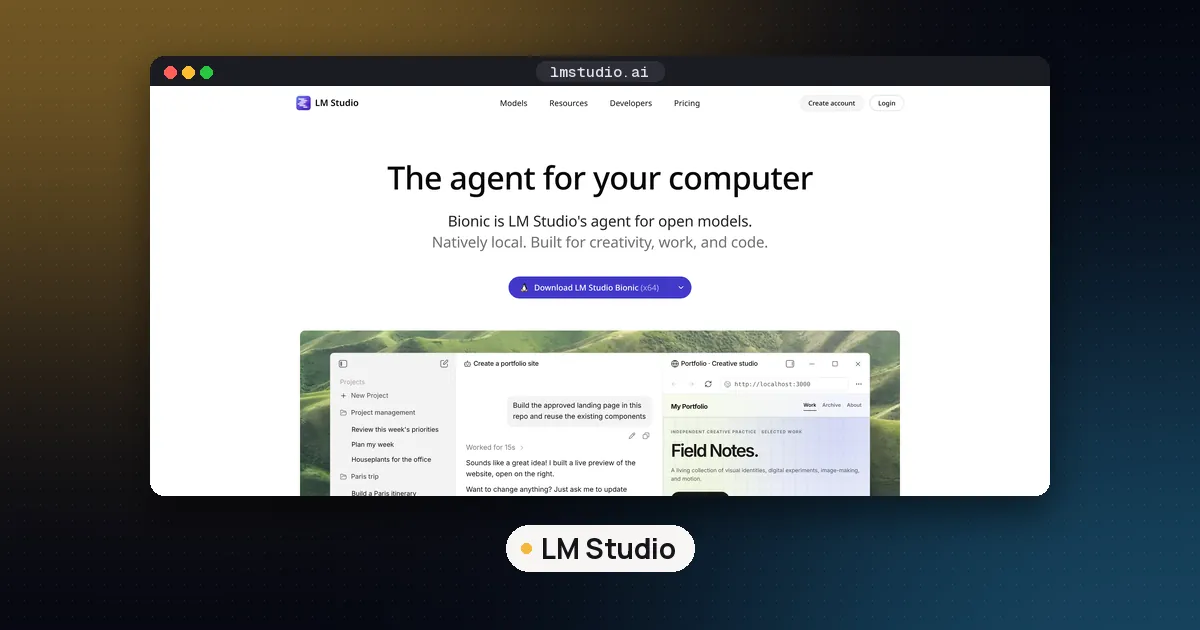
LM Studio's own documentation lists what the app is for: downloading and running local LLMs, a chat interface, MCP servers, search and download from Hugging Face, serving models on OpenAI like endpoints, and managing local models, prompts and configurations. It runs models through llama.cpp on Mac, Windows and Linux, and through Apple's MLX on Apple Silicon Macs. Training is not on that list.
That is why searches for "fine tune LLM in LM Studio" lead to a split workflow. Here is who does what:
| Stage | Where it happens | Typical tool |
|---|---|---|
| Prepare data | Your editor or a notebook | JSONL file in chat format |
| Train the adapter | NVIDIA GPU, Colab or a Mac | Unsloth, mlx-lm, PEFT |
| Merge and convert | Same machine as training | Unsloth's GGUF export, mlx_lm.fuse, or llama.cpp tools |
| Import | Your LM Studio machine | lms import, the Discover tab, or the models folder |
| Test and serve | LM Studio | Chat tab, Developer tab, lms server start |
LM Studio and Unsloth document this exact route together. Unsloth has a page on deploying models to LM Studio plus a ready made LM Studio notebook built on FunctionGemma 270M, and LM Studio published a FunctionGemma and Unsloth walkthrough on its blog.
Step 1: choose where to train
Your choice depends on the hardware you have.
- NVIDIA GPU on your own machine: Unsloth with LoRA or QLoRA. A 4B to 8B instruct model fits on one consumer card with 4 bit QLoRA. See how much VRAM you need for an LLM to check your card.
- No GPU at all: run an Unsloth notebook on Google Colab. Our guide on how to fine tune an LLM in Google Colab explains what the free tier gives you and how to keep a run from being lost.
- Apple Silicon Mac: mlx-lm trains LoRA adapters natively with
mlx_lm.lora, installed withpip install "mlx-lm[train]", according to the mlx-lm LoRA docs. - Prefer a web interface: Unsloth Studio can train and then export a merged model, a LoRA only folder or a GGUF file, per its export docs.
Whichever you pick, start from an instruct model that LM Studio already runs well, such as a small Gemma or Qwen model. That way you know the base works in the app before you change anything, and the chat template is one LM Studio recognizes.
Step 2: train a LoRA adapter
The training itself is the same as any LoRA fine tune. Put a few hundred to a few thousand clean examples in a JSONL file using the chat format your model expects, train a LoRA adapter on top of the frozen base, and watch the loss. Hold back some examples for testing.
Two habits pay off later in LM Studio:
- Use the model's own chat template during training. Unsloth notebooks apply it for you. If you train with one template and LM Studio applies another, the output looks broken even though the weights are fine.
- Test inside the training tool before exporting. Unsloth notebooks include an inference cell, and mlx-lm has
mlx_lm.generatewith an adapter path. If the model is already wrong there, converting it will not help.
If you are unsure about LoRA settings or whether QLoRA is enough, our comparison of LoRA vs QLoRA covers the tradeoffs.
Step 3: export to GGUF
LM Studio's import docs are written for GGUF files, the llama.cpp format, so GGUF is the safest target on every operating system. LM Studio's documented import path does not cover loading a LoRA adapter on its own, so merge the adapter into the base model as part of the export.
From Unsloth
Unsloth merges and converts in one call. From its LM Studio page:
model.save_pretrained_gguf("my_model_gguf", tokenizer, quantization_method = "q4_k_m")
# or push it to Hugging Face instead
model.push_to_hub_gguf("hf_username/my_model_gguf", tokenizer, quantization_method = "q4_k_m")
Unsloth describes the three common choices like this:
| Quantization | Unsloth's description | When to pick it |
|---|---|---|
q4_k_m | Usually the default for local runs | Laptops and cards with limited memory |
q8_0 | Optimum for near full precision quality | When you want to judge the fine tune fairly |
f16 | Largest and slowest, original unquantized precision | As a master copy to quantize later |
A sensible plan is to export q8_0 first to check quality, then a q4_k_m for daily use. Our explainer on GGUF quantization covers the other quant types, and some newer model families temporarily support only a few of them, so check Unsloth's notes for your model.
From mlx-lm on a Mac
The mlx_lm.fuse command merges your adapters into the base model. By default it reads adapters from adapters/ and writes to fused_model/. Adding --export-gguf saves a GGUF as fused_model/ggml-model-f16.gguf:
mlx_lm.fuse --model mistralai/Mistral-7B-v0.1 --export-ggufThere is a catch. The mlx-lm docs say GGUF export is limited to Mistral, Mixtral and Llama style models in fp16 precision. For other architectures, fuse without --export-gguf and convert the fused folder with llama.cpp's conversion script, or keep it as an MLX model (see the Mac section below). If you want a smaller file than f16, our guide on how to quantize LLM models shows the llama.cpp steps.
Step 4: import the model into LM Studio
You have three ways in. All of them end with the model listed under My Models.
Option A: lms import
The lms command line tool ships with LM Studio. The import docs label lms import as experimental and show this basic form:
lms import /path/to/my_model.Q4_K_M.ggufIt then asks a few questions interactively. Unsloth's page lists extra flags: --copy keeps the original file, --symbolic-link leaves a large file where it is (useful on a separate drive), --user-repo my-user/my-finetunes skips the prompts and sets the folder name, and --dry-run shows what would happen without changing anything.
Option B: download from Hugging Face
If you pushed the GGUF to the Hugging Face Hub, open the Discover tab and search for your-username/repo-name or paste the full URL. LM Studio's download docs confirm the search accepts a user/model string or a Hugging Face link. From a terminal, lms get your-username/repo-name@Q4_K_M picks a specific quant.
Option C: copy the file by hand
LM Studio keeps the Hugging Face layout of publisher, then model, then file:
~/.lmstudio/models/
  my-name/
    my-finetune/
      my-finetune-Q4_K_M.gguf
Create the two folders, drop the file in, and reopen My Models. If your models live elsewhere, My Models also lets you change the models directory.
Step 5: check the prompt template first
This is where most imported fine tunes go wrong. LM Studio reads the prompt template from the model file's metadata. Its prompt template docs say you only need to change it when the metadata is wrong, incomplete or missing, which is exactly what can happen with a custom export.
Unsloth's troubleshooting note is direct: if the model behaves in Unsloth but LM Studio output is gibberish or repeats, it is almost always a chat template mismatch. To fix it:
- Open My Models and click the gear icon next to your model.
- Find Prompt Template and set it to the template you trained with, either as Jinja or with manual role prefixes and suffixes.
- To see exactly what LM Studio sends to the model, run
lms log streamwhile you chat.
Then run your held out test prompts in the Chat tab and compare the answers with what you saw in the training notebook.
Step 6: serve your fine tune as an API
Once it answers correctly, you can put it behind LM Studio's OpenAI compatible server, so any app or script that speaks the OpenAI API can use it. The API docs list endpoints including /v1/models, /v1/chat/completions, /v1/responses and /v1/embeddings.
From the GUI, load the model, open the Developer tab and start the server. From a terminal, Unsloth's page uses:
lms ls
lms load <model-identifier> --gpu=auto --context-length=8192 --identifier="my-finetune"
lms server start --port 1234
curl http://localhost:1234/v1/models
Setting --identifier gives you a stable model name to put in your code, even if you replace the file with a newer fine tune later. To use the server from your editor, see how to use a local LLM in VS Code.
Fine tuning for LM Studio on a Mac
On Apple Silicon, LM Studio runs both GGUF and MLX models, so you have two ways to ship a Mac fine tune. The GGUF route above works for any model llama.cpp supports. The MLX route keeps everything in Apple's format: fuse with mlx_lm.fuse, upload the fused model with its --upload-repo option, then download it in LM Studio's Discover tab. LM Studio's import docs only describe GGUF files, so the Hugging Face download is the cleaner path for MLX folders.
Which format runs faster depends on the model and chip. Our comparison of MLX vs GGUF on Mac covers how to test both. LM Studio's system requirements call for macOS 14 or newer on Apple Silicon, with 16 GB of RAM recommended.
Common problems and fixes
| Problem | Likely cause | Fix |
|---|---|---|
| Model not in My Models | Wrong folder layout | Use lms import, or check the publisher/model/file folders |
| Gibberish or endless repeats | Prompt template mismatch | Set the template in My Models, check with lms log stream |
| Answers look like the base model | Adapter never merged | Export again with the merge or fuse step, not the adapter alone |
| Out of memory or slow | Quant or context too large | Use q4_k_m, lower context length, adjust GPU offload |
| GGUF export fails on a Mac | mlx-lm export limits | Fuse without --export-gguf, convert with llama.cpp |
The out of memory advice comes straight from Unsloth's LM Studio page. If you are choosing between LM Studio and other runners for the final model, our comparison of Ollama vs llama.cpp vs LM Studio explains where each fits.
FAQ
Can you fine tune a model directly in LM Studio?
No. LM Studio's documentation describes running, chatting with, managing and serving models, not training them. Train with a tool such as Unsloth or mlx-lm, export to GGUF, and import the file into LM Studio.
Can LM Studio load a LoRA adapter without merging it?
LM Studio's import docs only describe importing model files such as GGUF, and they do not document loading a separate LoRA adapter. Merge the adapter into the base model during export so you have a single file to import.
Which GGUF quantization should I export for LM Studio?
Unsloth calls q4_k_m the usual default for local runs and q8_0 the choice for near full precision quality. Export q8_0 first to judge your fine tune, then q4_k_m if you need a smaller file.
Why does my fine tuned model give nonsense in LM Studio?
Unsloth says this is almost always a chat template mismatch. Open My Models, click the gear next to the model, and set the prompt template to the one you trained with. Running lms log stream shows the raw prompt LM Studio sends.
Do I need a GPU to fine tune a model for LM Studio?
You need one for training, but it does not have to be yours. Free Google Colab notebooks from Unsloth train small models on a hosted GPU, and an Apple Silicon Mac can train with mlx-lm. Running the finished GGUF in LM Studio only needs a machine that meets LM Studio's system requirements and has room for the file you exported.
Where does LM Studio store imported models?
In ~/.lmstudio/models/, organized as publisher, then model, then the model file. You can change the models directory from the My Models tab.