To fine tune an LLM in Google Colab, open one of Unsloth's free Colab notebooks, switch the runtime to a GPU, pick a small model such as Gemma 4 E2B or Qwen3.5 4B, point the notebook at your own dataset and run every cell. The notebook trains a LoRA adapter with TRL, lets you test the result in the same session, and saves it as an adapter, a merged 16 bit model or a GGUF file. Save checkpoints to Google Drive as you go, because free Colab sessions end without warning.
That is the whole route in one paragraph. The rest of this guide covers which models fit the free GPU, what each notebook cell actually does, how to stop losing work when the runtime disconnects, and when Colab is the wrong place to train. If you have your own graphics card, our guide to fine tuning an LLM locally covers the same job on your machine.
What you get on free Google Colab
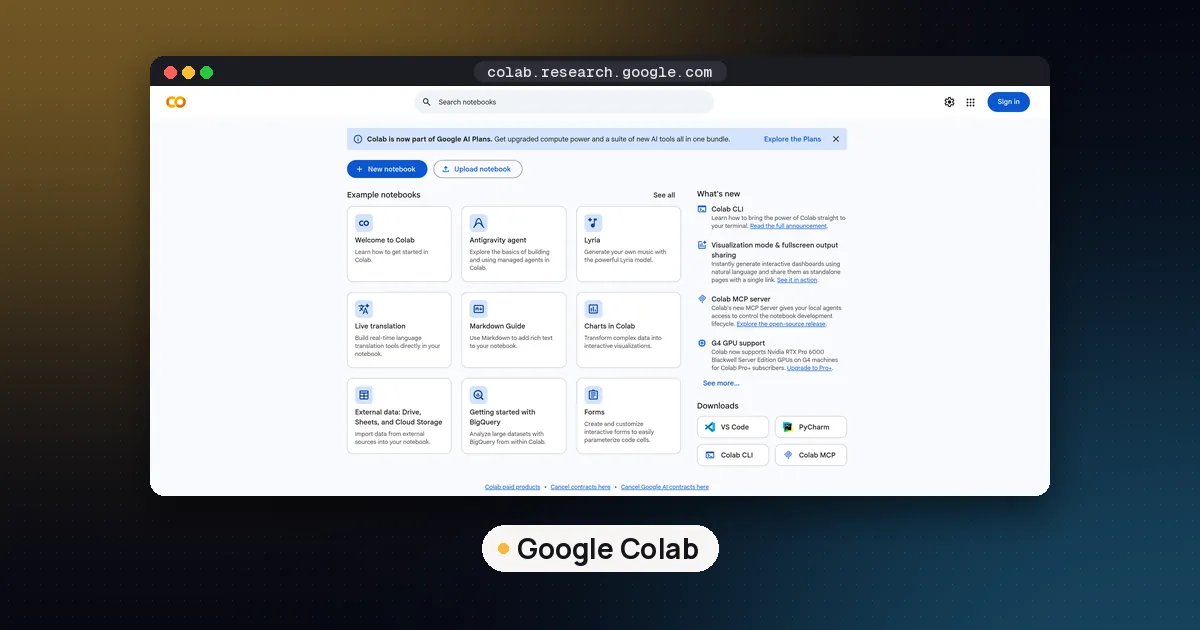
Google Colab is a hosted Jupyter notebook service. The Colab FAQ says it is free to use and offers GPUs and TPUs, but it is also blunt about the limits:
- Hardware is not guaranteed. The GPU types available "vary over time", and Google does not publish exact limits because they change.
- Sessions are capped. Free notebooks "can run for at most 12 hours, depending on availability and your usage patterns", and runtimes time out if you are idle.
- Your files disappear. Code runs in a virtual machine that is deleted when idle for a while, so anything saved only to the VM is lost.
- Paid plans help but do not remove limits. Colab Pro, Pro+ and Pay As You Go give more compute through compute units. Pro+ supports continuous execution for up to 24 hours if you have enough units.
In practice the free GPU you are usually given is an NVIDIA T4. Unsloth's own Gemma 4 notebook opens with "press Runtime and press Run all on a free Tesla T4 Google Colab instance", and its notebook catalog describes the free tier as 15 GB of VRAM. That number shapes everything else: it is plenty for LoRA on small models and far too little for big ones.
Which models fit the free tier
Unsloth splits its notebooks into standard ones that run on the free tier and a "Large LLMs" group that it says exceeds Colab's free 15 GB of VRAM and needs a Colab subscription or credits. Here is how that breaks down for common choices, based on that catalog:
| Model size | Examples with Unsloth Colab notebooks | Free T4? |
|---|---|---|
| Under 2B | Qwen3.5 0.8B, Llama 3.2 1B, Gemma 3 270M | Yes, quick runs |
| 2B to 4B | Gemma 4 E2B and E4B, Qwen3.5 2B and 4B, Llama 3.2 3B | Yes, the sweet spot |
| 7B to 14B | Mistral v0.3 7B, Llama 3.1 8B, Qwen3 14B, Phi-4 | Yes with 4 bit QLoRA, slower and tighter on memory |
| 20B to 35B | gpt-oss 20B, Gemma 4 31B, Qwen3.5 27B | Mostly paid GPUs, though Unsloth marks a few (gpt-oss 20B and one Gemma 4 31B notebook) as free |
| 70B and up | Llama 3.3 70B, gpt-oss 120B | Paid Colab GPUs only |
If you are new to this, start in the 2B to 4B row. Training is fast enough to try several datasets in one session, and mistakes cost minutes instead of hours. Unsloth's fine tuning guide also recommends starting from an instruct model rather than a base model, because instruct models already follow a chat template and need less data. For a deeper look at memory needs on any hardware, see how much VRAM you need for an LLM.
Step by step: fine tune an LLM in Google Colab
These steps follow Unsloth's Gemma 4 E2B text notebook, published in the unslothai/notebooks repository. Other Unsloth notebooks use the same layout with a different model name and chat template.
1. Open the notebook and pick a GPU runtime
Open the notebook from the Unsloth catalog, then choose Runtime, Change runtime type and select a GPU. The Colab FAQ warns that a GPU runtime counts against your limits even when your code is not using it, so switch back to no accelerator when you are only editing.
2. Install the libraries
The first cell installs Unsloth plus pinned versions of Transformers, PEFT, TRL, bitsandbytes and datasets. It detects whether it is running in Colab and installs a slightly different set there. Leave the pins alone on your first run. Most "it broke overnight" errors in Colab come from a library upgrading underneath a notebook.
3. Load the model
The notebook loads the model with FastModel.from_pretrained. The settings that matter:
model, tokenizer = FastModel.from_pretrained(
    model_name = "unsloth/gemma-4-E2B-it",
    max_seq_length = 1024,
    load_in_4bit = False,
)
max_seq_length sets the longest example you can train on, and memory grows with it. load_in_4bit = True turns the run into QLoRA, which is how 7B to 14B models fit on a T4. Our LoRA vs QLoRA guide explains the quality and memory tradeoff.
4. Add LoRA adapters
FastModel.get_peft_model attaches small trainable matrices to the frozen model. The notebook uses r = 8 and lora_alpha = 8, keeps the language layers on and the vision layers off for a text task. A higher rank can learn more, but the notebook's own comment warns that it might overfit.
5. Load and format your data
The example loads the first 3,000 rows of the FineTome-100k conversation dataset, standardizes it, and applies the Gemma 4 chat template so each example becomes one text field. To use your own data, upload a JSON Lines or CSV file, load it with load_dataset, and shape each row into a list of user and assistant messages before the template step. The Hugging Face Datasets page covers the loading side. Data quality decides the result far more than any setting in the next step.
6. Train
Training uses TRL's SFTTrainer. The notebook's defaults are a batch size of 1 with 4 gradient accumulation steps, a learning rate of 2e-4, the 8 bit AdamW optimizer and max_steps = 60 so the demo finishes fast. For a real run, remove max_steps and set num_train_epochs = 1. The notebook also calls train_on_responses_only, which ignores the loss on user turns so the model only learns from the answers.
Watch the loss column. Unsloth's guide says a loss around 0.5 to 1.0 is often a good sign, and a loss that drops to 0 can mean overfitting, so check a validation set too.
7. Test it before you leave
Run the inference cell with a few prompts your dataset was meant to teach. Do this before saving anything, while the model is still in memory. If the answers look the same as the base model, train for longer or fix the data before you spend time exporting.
8. Save the result
You have three choices, all shown in the notebook:
| Save option | Notebook call | Use it for |
|---|---|---|
| LoRA adapter only | model.save_pretrained("gemma_4_lora") | Smallest files, reload with Unsloth or PEFT |
| Merged 16 bit model | model.save_pretrained_merged(...) | Serving with vLLM or Transformers |
| GGUF file | model.save_pretrained_gguf(...) | llama.cpp, Ollama, LM Studio |
Each has a push_to_hub twin that uploads straight to your Hugging Face Hub account, which is the most reliable way to get large files out of Colab. Unsloth's GGUF saving docs list q4_k_m as the recommended quantization for most models, but the Gemma 4 notebook currently supports only Q8_0, BF16 and F16 for that model and says 4 bit will come later. Our GGUF quantization guide explains what those names mean.
How to keep Colab from losing your training run
Free Colab is built for interactive work, so plan for disconnects:
- Mount Google Drive and write checkpoints there. Set the trainer's
output_dirto a folder under/content/drive/MyDriveand save every few hundred steps. The Colab FAQ notes that mounting Drive gives any code in the notebook access to all your Drive files, so only do this with notebooks you trust. - Resume instead of restarting. The Unsloth notebook points out that
trainer.train(resume_from_checkpoint = True)picks up from the last saved checkpoint. - Keep data reads light. The FAQ says Drive operations can time out on folders with many files. Copy your dataset to the VM as one archive and unpack it there.
- Store tokens as Colab secrets. Use the key icon in the left sidebar for your Hugging Face token rather than pasting it into a cell that might get shared.
- Stay inside the rules. The FAQ lists actions that are not allowed on free runtimes, including remote desktops, SSH shells and using a web UI instead of the notebook. Training from notebook cells is the intended use.
Colab vs Kaggle vs your own GPU
Kaggle notebooks are the other common free option, and Unsloth publishes Kaggle versions of many of the same notebooks, including a free Gemma 4 31B one. A rented cloud GPU or your own card removes the session limits entirely.
| Option | Cost | Main limit | Best for |
|---|---|---|---|
| Free Colab | Free | GPU not guaranteed, sessions up to 12 hours | Learning, small models, quick experiments |
| Paid Colab | Compute units | Units run out, then free tier rules apply | 20B to 120B models without managing servers |
| Kaggle | Free | Its own usage quotas | A second free GPU when Colab is busy |
| Your own GPU | Hardware you own | VRAM on your card | Long runs, private data, repeat training |
If your training data is private, think twice before uploading it to any hosted notebook, and read the provider's terms first.
When Google Colab is the wrong choice
Colab is the easiest place to learn, but it stops making sense when your runs regularly take longer than a session, when you need the same environment every time, or when the data cannot leave your company. At that point train locally or on a dedicated GPU. Our guides to fine tuning an LLM for code generation and fine tuning an LLM for a classification task cover task specific recipes that work in either place.
FAQ
Can you fine tune an LLM in Google Colab for free?
Yes. Unsloth's standard notebooks are built for the free tier, and its catalog describes that tier as 15 GB of VRAM, usually a T4. Models up to about 14B parameters fit with 4 bit QLoRA, and 2B to 4B models train comfortably.
How long can a free Colab fine tuning run last?
The Colab FAQ says free notebooks can run for at most 12 hours, depending on availability and usage, and idle runtimes time out sooner. Save checkpoints to Google Drive so a disconnect only costs you the steps since the last save.
Which model should I fine tune first in Colab?
Start with a small instruct model such as Gemma 4 E2B, Qwen3.5 4B or Llama 3.2 3B. They train quickly on a T4, so you can test your dataset and settings before moving to a larger model.
Do I need Colab Pro to fine tune Llama or Gemma?
Not for small and mid sized models. Unsloth lists its bigger notebooks, such as Qwen3.5 27B and Llama 3.3 70B, under large models that need a Colab subscription or credits. A few, like gpt-oss 20B, are marked free.
How do I use my Colab fine tune in Ollama or LM Studio?
Export it as a GGUF file with save_pretrained_gguf or push_to_hub_gguf, download the file or pull it from Hugging Face, and load it in Ollama, LM Studio or llama.cpp. Unsloth also has a notebook dedicated to deploying a fine tune to LM Studio, and our guide on how to fine tune an LLM for LM Studio walks through importing and serving the file.
Can I fine tune an LLM in Colab without writing code?
Mostly. Unsloth offers an Unsloth Studio notebook for Colab, a web interface for training and running models under 22B parameters. You still start it from a notebook cell, but the training itself runs from the interface.