To run MiniMax H3 Image in ComfyUI, update to ComfyUI 0.45.0 or newer, download four files from the Comfy-Org mirror (a 21 GB INT8 diffusion model, a 25.28 GB Qwen3-VL text encoder, an optional 7.34 GB prompt expander and a 1.17 GB VAE), then open the "MiniMax-H3-Image: Text to Image" or "Image Edit" template. The sampler settings are fixed by the checkpoint: 6 steps, guidance 1, no negative prompt. Before you download anything, read the license: it does not grant any rights in the United States, the European Union, the United Kingdom or South Korea.
MiniMax released the weights on November 10, 2026, and ComfyUI shipped native support the same day. Below: what the model is, which files go where, the settings that matter, what the official recipes say about hardware, and the license terms that decide whether you can use it at all.
What MiniMax H3 Image is
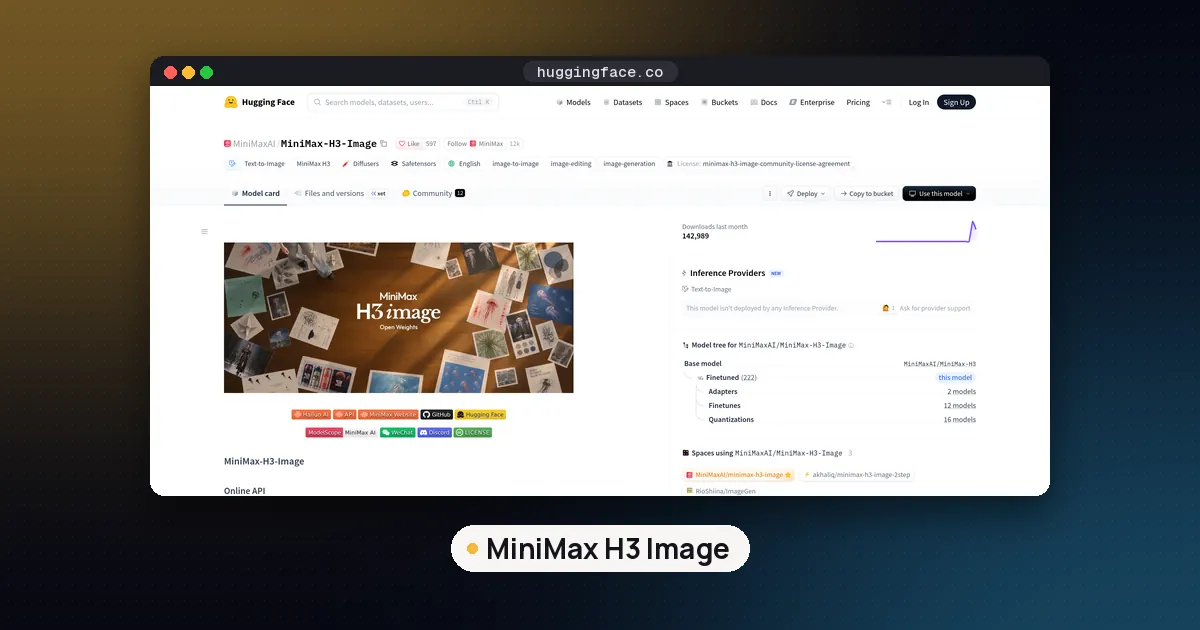
According to the official MiniMax-H3-Image model card, it is an image generation and editing model from the MiniMax H3 family, the open weight video model MiniMax released in August. One checkpoint does both jobs: send only a prompt and it generates an image, connect reference images and it edits them. It accepts up to 16 references, which you name in the prompt by their order.
The parts, from the card and the vLLM recipe:
| Component | What it is | Size |
|---|---|---|
| Diffusion transformer | Dense single stream DiT, 33.1B parameters, 50 layers, H3 architecture without the audio layers | 66.28 GB in BF16 |
| Text encoder | The Qwen3-VL text encoder from MiniMax H3, unchanged (33.4B per the vLLM recipe) | 66.7 GB in BF16 |
| Image VAE | CNN encoder and a 24 layer ViT decoder | 2.34 GB in FP32 |
| Prompt expander (optional) | MiniMax-H3-Image-PE, a Qwen3.8-27B model | 17.9 GB in NVFP4 |
It is distilled to six sampling steps with no classifier free guidance, renders about 16 megapixels directly without an upscaler, and accepts prompts of up to 4,096 tokens, because it expects a long, detailed English description of the whole image.
MiniMax H3 Image ComfyUI setup
Support landed in ComfyUI v0.45.0, published at 4:42 PM ET on November 10, 2026 (the release notes list "Support MiniMax-H3-image"). The Comfy docs tutorial says both templates need ComfyUI 0.45.0 or newer and template pack 0.11.104 or newer. If a template is missing from your Template Library or nodes show up red, your install is older than that.
- Update ComfyUI. On a manual install, pull the latest code and rerun
pip install -r requirements.txtso the frontend and template packages update too. - Download the four files listed in the next section into
ComfyUI/models. - Restart ComfyUI and open the Template Library. Search for "MiniMax-H3-Image".
- Pick Text to Image for new pictures or Image Edit to change an existing one.
- Type your prompt and run. The text to image template opens at 4 MP on a square canvas, on purpose, so smaller GPUs do not run out of memory. Raise the megapixel value in the resolution selector once you know your card has room.
If you would rather not download anything, the Comfy blog post notes the model is also available through Partner Nodes, which call the MiniMax API from the same canvas. That route is billed by the provider and sends your prompts off your machine, so it is not local inference.
Which files to download
The Comfy docs list these files, all from the Comfy-Org/MiniMax-H3-Image repository on the Hugging Face Hub:
| File | Folder | Size | Role |
|---|---|---|---|
minimax_h3_image_pruned_int8_convrot.safetensors | models/diffusion_models/ | 21 GB | Pruned INT8 diffusion transformer |
qwen3vl_32b_minimax_h3_int8_convrot.safetensors | models/text_encoders/ | 25.28 GB | Qwen3-VL text encoder, INT8 |
qwen3.5_9b_w4a8_gptq.safetensors | models/text_encoders/ | 7.34 GB | Prompt expander (optional) |
minimax_h3_image_vae_fp16.safetensors | models/vae/ | 1.17 GB | Image VAE, FP16 |
That is about 55 GB with the expander. The text encoder is the same file MiniMax H3 video uses in ComfyUI, so if you already run that model you can skip it.
The repository also holds variants the tutorial does not use: a pruned BF16 transformer (about 40 GB), a W4A8 transformer (about 12.5 GB) and an NVFP4 text encoder (about 15.7 GB). Comfy has not published quality comparisons for them, so start with the template files.
Best settings for MiniMax H3 Image
Both templates ship the distilled schedule, and you should leave it alone:
| Setting | Value |
|---|---|
| Sampler | euler |
| Scheduler | simple |
| Steps | 6 |
| CFG | 1 |
| Denoise | 1 |
The checkpoint has one output head per step, and the vLLM docs say other step counts or guidance values are rejected. With guidance at 1 there is no negative prompt, so write what you want to avoid into the positive prompt.
Resolution matters more than usual. The model card puts the effective working range at about 4 to 20 MP, with the best results near 16 MP. A note inside the template warns that it does not work well at low resolution. The recommended 16 MP sizes are 4096 x 4096 (1:1), 4736 x 3552 (4:3), 5024 x 3360 (3:2), 5472 x 3072 (16:9) and 6272 x 2688 (21:9), with portrait versions of each. Every edge is generated on a multiple of 32 pixels.
Inside the MiniMax H3 Image Conditioning node, width and height default to 0, which means automatic: 2048 x 2048 for text to image, or the size of image_1 when you edit.
Using the prompt expander
The model reads long captions best. Both templates include a text generation step that rewrites a short request into a detailed English caption and, for text to image, picks an aspect ratio. In the text to image template it is switched off, so your prompt goes in exactly as typed. In the edit template it is on.
The official expander is MiniMax-H3-Image-PE, a Qwen3.8-27B model in FP4. The ComfyUI templates swap in a lighter Qwen3.5 9B W4A8 build so the expander fits beside the 21 GB diffusion model on one GPU.
How to edit images with MiniMax H3 Image
The Image Edit template loads your source picture as the first reference and adds a before and after comparison at the end. Some rules from the Comfy docs and blog:
image_1is always the picture being edited. Later slots are references for identity, props, materials or composition.- Name references in the prompt by their order, up to 16 images. A short instruction such as replacing the vehicle in picture 1 with the one in picture 2 is enough when the expander is on.
- To add a reference, place another Load Image node and connect it to both the prompt generation step and the conditioning node.
- Connect the VAE to the conditioning node when you edit. With it, references are anchored as latents as well as read by the text encoder.
- If an edit runs out of memory, enable the template's Resize Image/Mask node and lower its megapixels.
The vLLM recipe adds a tip: combine several changes into one edit rather than chaining edits.
Hardware: what the official recipes say
Neither MiniMax nor Comfy publishes a minimum VRAM figure for the ComfyUI files, and we did not run the model ourselves, so treat the numbers below as the vendors' own measurements on data center GPUs. For a general primer on reading memory needs, see our guide to how much VRAM you need.
| Setup | Source | Peak memory | Time for a 2048 x 2048 image |
|---|---|---|---|
| 1 H200, transformer and encoder offloaded layer by layer | vLLM recipe | 14.7 GiB | 8.3 s |
| 1 H200, transformer resident, encoder offloaded | vLLM recipe | 73.4 GiB | 3.2 s |
| 4 H200, sequence parallel (default) | vLLM recipe | 81.3 GiB per GPU | 0.88 s |
| 1 GPU with diffusers auto offload, 4736 x 3552 image | diffusers docs | about 65 GB | not stated |
The diffusers documentation explains why offload is the default: the transformer and text encoder are about 62 GB each in BF16 and do not fit together on an 80 GB card. The ComfyUI files are INT8 and much smaller, which is the whole point of the repackage. The model card lists NVIDIA and AMD accelerators for serving and says nothing about Apple silicon, so if you use ComfyUI on a Mac, expect to wait for community reports.
Running it without ComfyUI
Three other official routes exist, all described on the model card:
- vLLM with vLLM-Omni (vLLM 0.33.0 or newer):
vllm serve MiniMaxAI/MiniMax-H3-Image --omnigives you an OpenAI style/v1/images/generationsendpoint. Plan for about 127 GB of disk for the BF16 weights. - SGLang:
sglang serve --model-path MiniMaxAI/MiniMax-H3-Imagewith the same request format. - diffusers: a Modular Diffusers pipeline only, installed from source at the time of writing.
The license, and why it matters more than the specs
The MiniMax-H3-Image Community License, dated November 10, 2026, is not an open source license. Its key terms:
- Territory. Rights are granted only in the "Applicable Territory", defined as worldwide minus the European Union, the United Kingdom, the Republic of Korea and the United States. The license says use outside that territory is not authorized, and invites people in those regions to contact MiniMax about a separate license.
- Revenue and hosting. You need prior written permission from MiniMax if you and your affiliates have annualized revenue above US$1 million, or if you offer the model to third parties as a hosted service.
- Attribution. Commercial products must show "MiniMax-H3-Image" in the interface.
- No training other models. You may not use the weights or their outputs to improve any other AI model.
The text encoder comes from MiniMax H3, whose own community license has the same excluded territories. This is the plain reading of the text, not legal advice. If you are in one of those four regions, the honest answer is that the license does not cover you today, and the permissive models in our best local image generation picks are the safer choice. Our explainer on open weight vs open source covers why licenses like this one matter.
How it compares with other open image models
| Model | Image model size | License | Strength |
|---|---|---|---|
| MiniMax H3 Image | 33.1B | MiniMax community license (excludes US, EU, UK, Korea) | 16 MP output, 6 steps, up to 16 references |
| FLUX 3 Image Klein | 5.6B | FLUX Kommunity License | Speed on 8 GB cards, editing with references |
| MOSS-Image | 5B | Apache 2.0 | Long text, posters, JSON layouts |
MiniMax H3 Image is the largest of the three and the only one aimed at 16 MP output in one pass. The smaller two run on modest GPUs under licenses that work in the United States.
Pros and cons
Pros
- Text to image and editing in one checkpoint, with up to 16 references
- About 16 MP output without an upscaling chain
- Six fixed steps, so no sampler tuning
- Native ComfyUI templates from day one, plus vLLM, SGLang and diffusers
Cons
- No rights granted in the US, EU, UK or South Korea
- Written permission needed above US$1 million revenue or for hosted services
- About 55 GB of downloads even in the INT8 ComfyUI build
- No published minimum VRAM for local GPUs yet
Who it is for
MiniMax H3 Image suits creators and studios outside the excluded regions who have a large GPU and want very high resolution output or multi reference composition, such as placing furniture into a room or turning a render into a film still. It also suits people already running MiniMax H3 video in ComfyUI, since the text encoder is shared. If you are in the United States or Europe, or you need a clean commercial license, pick FLUX 3 Klein, MOSS-Image or another model from our roundup instead.
FAQ
Which ComfyUI version supports MiniMax H3 Image?
ComfyUI v0.45.0, released November 10, 2026, added native support. The two official templates also need workflow template pack 0.11.104 or newer, so update both.
Where do I download MiniMax H3 Image on Hugging Face?
The full BF16 weights are at MiniMaxAI/MiniMax-H3-Image. For ComfyUI, use the smaller repackaged files at Comfy-Org/MiniMax-H3-Image, which include the INT8 diffusion model, the text encoders and the VAE.
Can MiniMax H3 Image edit images?
Yes. The same checkpoint edits whenever reference images are connected. The first image is the one being changed, and you can add up to 16 references named by their order in the prompt.
Does MiniMax H3 Image support negative prompts?
No. It is distilled to run at guidance 1 for six steps, so there is no negative prompt. Describe what you want to avoid in the main prompt instead.
Can I use MiniMax H3 Image in the United States?
Not under the community license as written. It excludes the United States, the European Union, the United Kingdom and South Korea from the territory where rights are granted, and asks people there to contact MiniMax for a separate license.
Is MiniMax H3 Image free for commercial use?
Only within limits. Outside the excluded regions, commercial use is allowed without a fee, but you need written permission from MiniMax above US$1 million in annual revenue or to host it for others, and commercial products must display the model name.