How to use llama.cpp in four steps: install it (the official installer, Homebrew, Winget or a prebuilt release), point it at a GGUF model on Hugging Face with the -hf flag, chat in your terminal with llama-cli, then run llama-server when you want a web UI and an OpenAI compatible API for other apps. One thing changed this autumn and trips up older tutorials: since October 9, 2026 the server listens on port 9931 by default, not 8080.
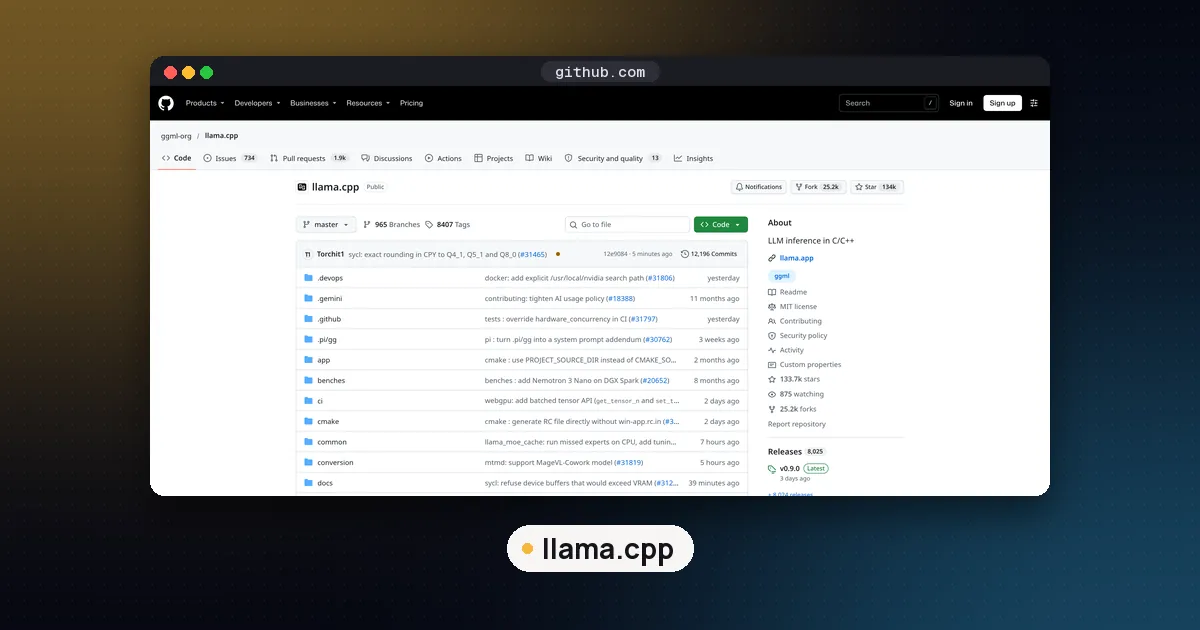
llama.cpp is the C and C++ inference engine that sits underneath many local AI apps. It runs quantized models on CPUs, Apple Silicon, NVIDIA, AMD, Intel and Vulkan GPUs, and it can split a model between GPU memory and system RAM when the model is too big for your card. If you have not decided between it and the friendlier wrappers, read Ollama vs llama.cpp vs LM Studio first. This page assumes you have picked llama.cpp and want to use it well.
Everything below comes from the project's own documentation, checked on November 7, 2026: the main README, the install guide, the Docker guide, the llama-server README and the llama-cli reference. We did not run these commands on our own hardware for this guide, so treat them as a careful summary of the docs rather than a benchmark.
What you need before you start
| Item | What to have | Why it matters |
|---|---|---|
| Operating system | Windows, macOS or Linux | All three have prebuilt packages |
| Memory | Enough RAM or VRAM for the model file plus context | A 4 bit 8B model is a few GB; huge MoE models need far more |
| GPU (optional) | NVIDIA (CUDA), AMD (HIP or Vulkan), Intel (SYCL), Apple Silicon (Metal) | CPU only works, just slower |
| A GGUF model | Any GGUF repo on Hugging Face | llama.cpp loads GGUF files |
| About 10 minutes | Most of it is the model download |
Not sure how big a model your machine can take? Our VRAM sizing guide walks through the arithmetic, and GGUF quantization explained covers what Q4_K_M and the other file names mean.
Step 1: Install llama.cpp
The README lists several routes. Pick the one that matches your system.
Official installer (macOS and Linux):
curl -LsSf https://llama.app/install.sh | shOfficial installer (Windows PowerShell):
irm https://llama.app/install.ps1 | iexPackage managers, from the install guide:
| Platform | Command | Notes |
|---|---|---|
| macOS or Linux | brew install llama.cpp | Formula updates with each release |
| Windows | winget install llama.cpp | Package updates with each release |
| Any | conda install -c conda-forge llama.cpp | Builds for CUDA, Vulkan and Metal |
| macOS | sudo port install llama.cpp | MacPorts |
| macOS or Linux | nix profile install nixpkgs#llama-cpp | Flake installs |
Prebuilt zips for each build sit on the releases page. The project now publishes numbered versions as well as frequent builds: the latest tagged release when we checked was v1.0.0 (November 13, 2026), and the rolling build had reached b12359 the same morning. Tagged releases ship only when llama.cpp's bundled ggml matches the released ggml, which matters if your package manager links a system ggml (release policy).
Build from source if you want a specific GPU backend or the newest code:
git clone https://github.com/ggml-org/llama.cpp
cd llama.cpp
cmake -B build
cmake --build build --config Release -j 8
Add the backend option your hardware needs at the first cmake step (for example CUDA or Vulkan); the build guide lists each one. On Apple Silicon, Metal is used without extra options.
Check the install with llama-cli --version. You should see the version and build number.
Step 2: Get a GGUF model
You do not have to download files by hand. Both llama-cli and llama-server take -hf <user>/<model>[:quant] and fetch the file from Hugging Face into a local cache. Per the CLI reference, if you leave off the quant tag it picks Q4_K_M, or the first file in the repo if there is no Q4_K_M. If the repo has a vision projector (an mmproj file), that downloads too; add --no-mmproj to skip it.
# Small test model from the README quick start
llama-cli -hf ggml-org/Qwen3.5-0.8B-GGUF

# Pick a specific quant
llama-cli -hf ggml-org/Qwen3.5-0.8B-GGUF:Q8_0
Useful companions:
-cl(or--cache-list) shows which models are already in your cache.--offlineforces llama.cpp to use the cache and never touch the network.-m path/to/model.ggufloads a file you already have, for example one you exported from a fine tuning run.- Gated repos need a token: set
HF_TOKENor pass-hft.
Start with a small model like the one above to prove everything works, then move up to something like Qwen at 8B or larger.
Step 3: Chat in the terminal with llama-cli
Once the model loads, llama-cli drops you into an interactive chat. The settings that matter most on day one:
| Flag | What it does | Default |
|---|---|---|
-c N | Context length in tokens | 0, which means "use the model's own value" |
-ngl N | Layers to keep on the GPU (auto, all or a number) | auto |
--fit on/off | Adjust unset options so the model fits in device memory | on |
-sys "text" | System message | none |
--temp N | Sampling temperature | 0.80 |
-t N | CPU threads | automatic |
Two defaults are worth understanding. First, -c 0 loads the model's full training context, which can be very large and eat memory, so set a sensible number like -c 8192 if you hit out of memory errors. Second, --fit is on by default and will shrink unset options (with a floor of 4,096 tokens of context) to fit your hardware. If you set values yourself, llama.cpp respects them, so a bad manual setting can still overflow.
The newer README also shows a single llama command from the llama.app installer, as in llama cli -hf ... and llama serve -hf .... The separate llama-cli and llama-server programs are what Homebrew, the Docker images and the server docs use, so this guide sticks to those names.
Step 4: Run llama-server for a web UI and API
llama-server is the part most people end up using day to day. It loads a model, opens a browser chat interface, and exposes HTTP endpoints that other apps can call.
llama-server -hf ggml-org/Qwen3.5-0.8B-GGUF -c 8192Then open http://127.0.0.1:9931 in a browser. The server README confirms the default host is 127.0.0.1 and the default port is 9931. The switch from 8080 landed in pull request #30159 on October 9, 2026, after a notice added in August. Many blog posts and scripts still assume 8080; if you need the old port, pass --port 8080. If you want chat history, several users or document chat on top of the server, our guide on how to use Open WebUI shows how to connect it as an OpenAI compatible backend.
The server speaks several API styles, all listed in the README:
| Route | Compatible with | Use it for |
|---|---|---|
/v1/chat/completions | OpenAI Chat Completions | Most apps, SDKs and editors |
/v1/responses | OpenAI Responses | Newer OpenAI style clients |
/v1/embeddings | OpenAI Embeddings | Search and RAG pipelines |
/v1/messages | Anthropic Messages | Tools that expect Claude's API |
/v1/models | OpenAI Models | Listing what is loaded |
/health | Readiness checks |
A quick test with curl:
curl http://localhost:9931/v1/chat/completions \
  -H "Content-Type: application/json" \
  -d '{"messages":[{"role":"user","content":"Explain GGUF in one sentence."}]}'
And the same call from Python with the official OpenAI library, pointed at your machine:
from openai import OpenAI

client = OpenAI(base_url="http://localhost:9931/v1", api_key="no-key")
reply = client.chat.completions.create(
    model="local",
    messages=[{"role": "user", "content": "Explain GGUF in one sentence."}],
)
print(reply.choices[0].message.content)
In single model mode the model field is ignored, so any name works.
Server options you will actually use
--host 0.0.0.0lets other machines on your network connect. Pair it with--api-key KEY(or--api-key-file) so not just anyone can use it.-np N(--parallel) sets how many server slots (simultaneous requests) there are. The server default is-1, meaning automatic.--jinjais on by default, so the model's own chat template handles tool calls. The README says OpenAI style function calling works with it, and some models need a--chat-template-fileoverride.--no-webuiturns the browser UI off for a headless API.--models-dir PATHswitches on router mode, which serves several models from one folder and loads them on demand (up to 4 at a time by default, set with--models-max). Requests then must name a model.
Step 5: Get the most out of your GPU and RAM
When a model does not fit entirely in VRAM, llama.cpp can keep part of it in system memory. The flags in the CLI reference:
| Situation | Flag | Effect |
|---|---|---|
| Dense model slightly too big | -ngl 30 (lower the number) | Fewer layers on GPU, rest on CPU |
| Mixture of Experts model | --n-cpu-moe N or --cpu-moe | Keeps expert weights in RAM, attention on GPU |
| Long context eats memory | -ctk q8_0 -ctv q8_0 | Quantizes the KV cache (default f16) |
| Several GPUs | -sm layer (default), row or tensor | Splits the model across cards |
| See your devices | --list-devices | Prints what llama.cpp can use |
Offloading to RAM works, but speed drops sharply because system memory is much slower than VRAM. Our explainer on whether a local LLM can use RAM instead of VRAM covers the tradeoffs, and the KV cache quantization guide explains when q8_0 or q4_0 is safe. On a Mac, compare GGUF in llama.cpp against Apple's own framework in MLX vs GGUF on Mac.
To measure your own speed rather than trust anyone's chart, the repo ships llama-bench, which reports prompt processing and generation rates for a model file.
Step 6: Run it in Docker (optional)
The Docker guide lists official images on GitHub's registry: server for just the API, light for the CLI, and full with conversion and quantization tools. Each comes in CUDA 12, CUDA 13, ROCm, Vulkan, SYCL (Intel), MUSA and OpenVINO variants. The README example maps port 8080 explicitly:
docker run -p 8080:8080 -v /path/to/models:/models --gpus all \
  ghcr.io/ggml-org/llama.cpp:server-cuda \
  -m /models/model.gguf -c 4096 --host 0.0.0.0 --port 8080 -ngl 99
The docs note that GPU images are built in CI but not otherwise tested there, so if a GPU image misbehaves, building locally is the fallback.
Connect llama.cpp to your editor and tools
Because the server speaks OpenAI's API, any tool that lets you set a custom base URL can use it. Point it at http://localhost:9931/v1 (or whichever port you chose). Our guide on how to use a local LLM in VS Code uses Ollama, but the same extensions (Continue, for example) accept any OpenAI compatible URL, so swap in your llama-server address.
For tools built on Anthropic's API, the server's /v1/messages route is the one to use. The llama.cpp README is careful here: it makes no strong claim of full compatibility, only that it works for many apps, and tool use needs --jinja.
Common problems and fixes
- "Connection refused" on port 8080. The default is now 9931. Use that or start the server with
--port 8080. - Out of memory at load. Set
-cto a smaller context, lower-ngl, or try a smaller quant. - Garbled or rambling replies. Usually a chat template mismatch. Make sure
--jinjais on (the default) or pass a known template with--chat-template. - Tool calls come back as plain text. Same cause as above; the README suggests a
--chat-template-fileoverride for tool calling. - A new model will not load. New architectures need a recent build. Update llama.cpp before you assume the file is broken.
When llama.cpp is the wrong tool
If you want a model running behind an API with zero flags, Ollama wraps llama.cpp with a model library and background service. If you prefer a desktop app, LM Studio does the same with a GUI. If you are serving many users on data center GPUs, a batching engine like vLLM is usually a better fit; see SGLang vs vLLM vs llama.cpp for that decision.
FAQ
How do I use llama.cpp on Windows?
Run winget install llama.cpp or the PowerShell installer (irm https://llama.app/install.ps1 | iex), or download a Windows zip from the releases page that matches your GPU (CUDA, Vulkan or CPU). Then run llama-server.exe -hf ggml-org/Qwen3.5-0.8B-GGUF and open http://127.0.0.1:9931.
How do I use the llama.cpp server?
Start llama-server with a model (-hf or -m), then use the browser UI at port 9931 or send requests to /v1/chat/completions. Add --host 0.0.0.0 and --api-key to reach it from other machines safely.
How do I use llama.cpp with Claude Code?
Claude Code's LLM gateway docs describe setting ANTHROPIC_BASE_URL to point it at another endpoint, and llama-server exposes an Anthropic style /v1/messages route. In principle you set the base URL to your server. llama.cpp only promises that the route works for many apps, and we have not tested this pairing, so expect to experiment with models that handle tool calls well.
What is the default llama.cpp port?
Port 9931 on 127.0.0.1, since October 9, 2026. Older versions and most older tutorials use 8080. The Docker examples in the docs still pass --port 8080 explicitly.
Does llama.cpp need a GPU?
No. It runs on CPU alone with AVX and ARM optimizations, but a GPU (or Apple Silicon's unified memory) is much faster. With a small GPU, keep some layers on the card with -ngl and the rest in RAM.
What model format does llama.cpp use?
GGUF. Most popular open weight models have GGUF versions on Hugging Face, often several quant levels in one repo, and the -hf flag picks Q4_K_M unless you choose another.