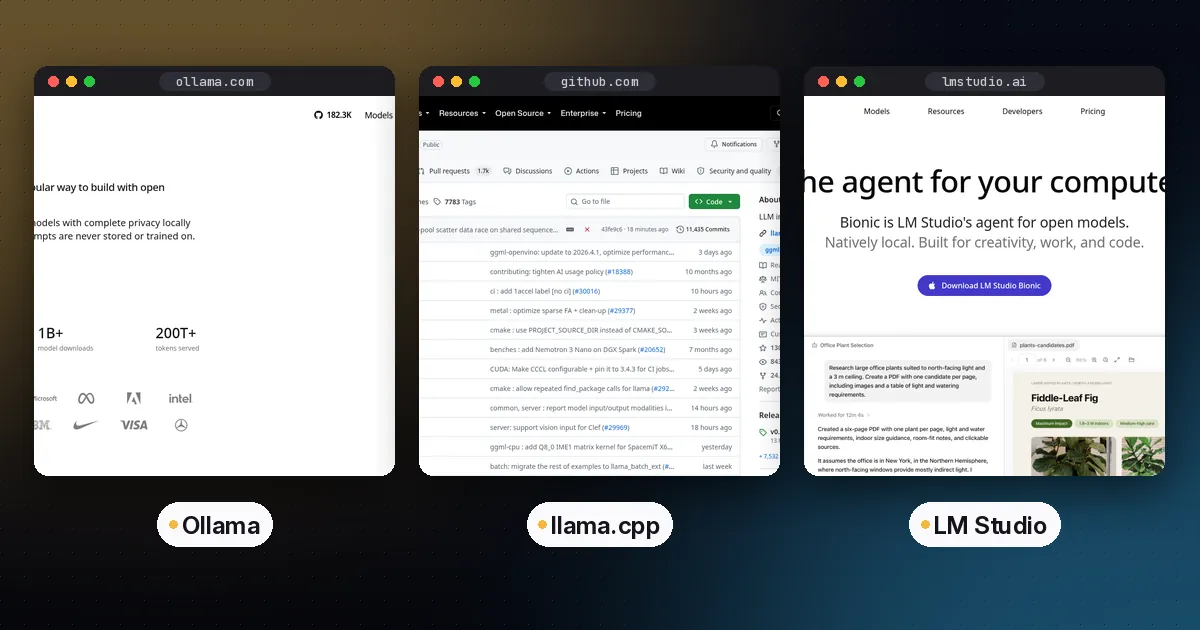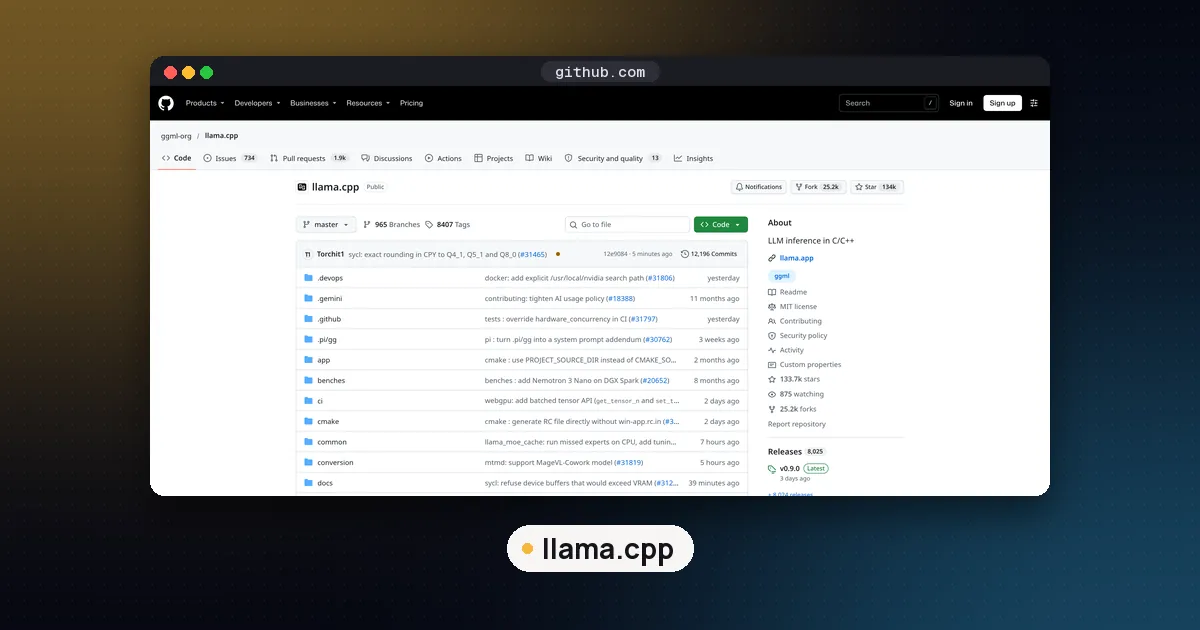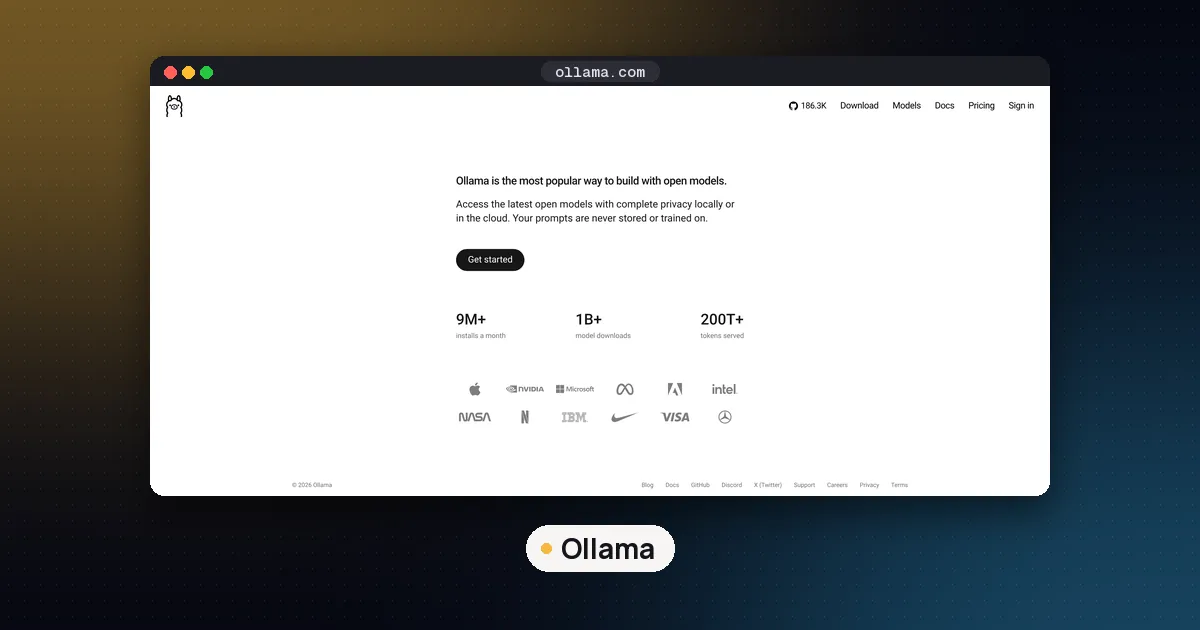
How to use Open WebUI comes down to three steps: start it (one Docker command, or pip install open-webui on Python 3.11 or 3.12), create the first account, which becomes the administrator, and connect a model server such as Ollama, llama.cpp or LM Studio under Settings, Admin, Connections. Open WebUI has no models of its own. It is a browser chat interface that sits in front of whatever engine you already run, so the engine decides speed and memory, and Open WebUI decides how pleasant it is to use.
The project shipped four releases this week. Version 0.13.0 landed on November 3, 2026, versions 0.13.1 and 0.13.2 followed on the morning of November 8, and 0.13.3 arrived that evening. The 0.13.2 fix matters to anyone running it at home: according to the release notes, opening Open WebUI over plain HTTP at a LAN or Docker address had left chats stuck on a spinner with a "crypto.randomUUID is not a function" error, and that is now fixed. If you updated on November 8 and saw that, pull again.
What's new (November 9, 2026): 0.13.1 added coding agents such as Claude Code and Codex to the model picker when a connected Open Terminal offers them, plus Tether, a desktop companion app that links your own computer to Open WebUI. 0.13.3 lets scheduled automations run one of those agents in a chosen terminal and folder and post the result to a chat. None of this is needed for a plain local chat setup.
This guide covers a single machine or a small home network. If you still need to pick an engine, read Ollama vs llama.cpp vs LM Studio first, and size your hardware with how much VRAM you need for an LLM.
What Open WebUI does and does not do
Open WebUI is a self hosted web app with chat history, multiple users, document chat (retrieval over files you upload), web search, tools and voice. It talks to model servers over two protocols: the Ollama API and the OpenAI compatible Chat Completions API. That second one is what llama.cpp, LM Studio and vLLM all speak, which is why one interface can sit in front of all of them at once.
What it does not do is run inference for you. A slow model in Open WebUI is a slow model in your engine. Tune context length, quantization and GPU offload in the engine, not here.
| Part | Job | Default address |
|---|---|---|
| Open WebUI (Docker) | Chat interface, users, history, documents | localhost port 3000 (container port 8080) |
| Open WebUI (pip or desktop app) | Same | localhost port 8080 |
| Ollama | Runs models, Ollama API | 127.0.0.1 port 11434 |
| llama-server (llama.cpp) | Runs GGUF models, OpenAI compatible API | 127.0.0.1 port 9931 unless you pass --port |
| LM Studio server | Runs models, OpenAI compatible API | localhost port 1234 |
| vLLM | GPU serving, OpenAI compatible API | localhost port 8000 |
Step 1: Install Open WebUI
With Docker (recommended)
The official quick start recommends Docker for most people. Generate a secret key once with openssl rand -hex 32, then run:
docker run -d -p 3000:8080 \
  --add-host=host.docker.internal:host-gateway \
  -v open-webui:/app/backend/data \
  -e WEBUI_SECRET_KEY=your-secret-key \
  --name open-webui --restart always \
  ghcr.io/open-webui/open-webui:main
Each flag has a reason. The -v open-webui:/app/backend/data volume holds your chats, users and settings and survives updates, so never run without it. The --add-host line lets the container reach Ollama or llama.cpp running on your own machine. A fixed WEBUI_SECRET_KEY stops everyone being logged out every time you recreate the container.
Pick the image tag that fits your setup:
| Tag | Use it when |
|---|---|
:main | You want everything, including the bundled embedding and speech models (about 1.62 GB download) |
:slim | You only chat with an external model server (about 197 MB download) |
:cuda | You want Open WebUI's own embedding, reranking and Whisper models on an NVIDIA GPU (add --gpus all) |
:ollama | You want Ollama and Open WebUI together in one container |
The download sizes are the project's own figures for Linux on amd64, checked October 16, 2026. The :cuda tag does not speed up your chat model. It only moves Open WebUI's helper models to the GPU; your engine still does the heavy work.
Without Docker
Open WebUI supports Python 3.11 and 3.12. Python 3.13 is not supported, and installs on it fail or break at runtime. In a fresh virtual environment:
pip install open-webui
DATA_DIR=~/.open-webui open-webui serve
That serves on port 8080. Use open-webui serve --port 3000 to change it. Setting DATA_DIR keeps your data in a folder you choose. If you use uv, DATA_DIR=~/.open-webui uvx --python 3.12 open-webui@latest serve does the same thing in one line. On a Linux PC without an NVIDIA card, install the CPU build of PyTorch first (pip install torch --index-url https://download.pytorch.org/whl/cpu) so pip does not pull in the CUDA libraries.
There is also a desktop app for macOS, Windows and Linux. The 0.13.0 notes describe it as focused on setting up and running Open WebUI on your own computer, with optional llama.cpp local models. The docs still point production installs to Docker or Python.
Step 2: Create the admin account
Open http://localhost:3000 for Docker, or http://localhost:8080 for pip and the desktop app. The first screen offers Create Admin Account. That first account controls every instance wide setting, and sign up switches itself off afterwards. Write the password down.
If you are the only user, you can skip logins entirely with -e WEBUI_AUTH=False. Decide before the first start: the docs warn you cannot switch between single user and multi account mode later.
Step 3: Connect Open WebUI to Ollama
If Ollama runs on the same machine, Open WebUI looks for it on its own: at http://host.docker.internal:11434 from Docker, or http://localhost:11434 from a pip install. It appears under Settings, Admin, Connections, in the Ollama section. As the admin you can then type a model name into the model selector of a new chat and confirm the pull.
The most common snag: Ollama binds to 127.0.0.1 port 11434 by default, according to the Ollama FAQ. When Open WebUI runs in Docker on Linux, the container cannot reach that loopback address, and the model list stays empty. Set OLLAMA_HOST=0.0.0.0:11434 for the Ollama service and restart it. If Ollama runs on another computer, start Open WebUI with -e OLLAMA_BASE_URL=http://that-machine:11434 or edit the connection URL. If you want a starting model, our guide to running DeepSeek locally with Ollama walks through a pull.
Step 4: Connect Open WebUI to llama.cpp
llama.cpp connects as an OpenAI compatible server. Start llama-server with a model, then add it in Open WebUI. The Open WebUI llama.cpp guide uses port 10000 in its example:
llama-server -m /path/to/your-model.gguf --port 10000Then go to Settings, Admin, Connections, click the plus next to the OpenAI connections, and fill in:
- URL:
http://127.0.0.1:10000/v1, orhttp://host.docker.internal:10000/v1if Open WebUI runs in Docker. Keep the/v1on the end. - Auth: None, for a server without a key. The docs note that Bearer with an empty key sends an empty token, which some servers reject.
- Provider: under Advanced, choose
llama.cpp. This adds a green Loaded marker, an admin Eject button that unloads the model without restarting the server, and a Manage panel that can download, load, unload and delete models.
If you leave out --port, remember that llama-server now listens on port 9931 by default. It moved from 8080 on October 9, 2026, so older tutorials that point Open WebUI at port 8080 will fail. A llama-server launched in router mode with several models shows all of them in Open WebUI's list. Our full walkthrough of how to use llama.cpp covers the flags, offload settings and router mode, and GGUF quantization explained helps you pick a file.
Step 5: Connect LM Studio or vLLM
LM Studio works the same way. Start its server from the Local Server tab, then add an OpenAI connection with URL http://localhost:1234/v1 and a blank key. Setting Provider to LM Studio under Advanced, as the OpenAI compatible provider docs describe, gives you loaded markers and the management panel. The Eject button does not work for LM Studio models; unload them from the panel instead.
vLLM uses http://localhost:8000/v1 by default. It suits a GPU box that serves several people at once; see Ollama vs vLLM for when that is worth the extra setup.
You can keep several connections at once. Local and hosted models then sit side by side in one model selector.
Fixing an empty model list
Work through these in order:
- Wrong address from inside Docker.
localhostinside the container means the container itself. Usehost.docker.internal, and keep the--add-hostflag on Linux. Under Podman the name ishost.containers.internal. - Engine only listening on loopback. Ollama needs
OLLAMA_HOST=0.0.0.0:11434when Open WebUI is in a container on Linux. - Missing
/v1. OpenAI compatible URLs need it. - Wrong port. Check what your llama-server actually printed at startup. It is 9931 unless you passed
--port. - Slow server. Open WebUI waits 10 seconds for a model list by default. Raise it with
AIOHTTP_CLIENT_TIMEOUT_MODEL_LIST=30. - No model list endpoint. Some servers do not publish one. Type the model IDs into the Model IDs field on the connection.
If the page never loads at all, run docker logs -f open-webui and wait for "Application startup complete".
Keep a local setup private
Running a local engine does not make every feature local. A stock install makes a few outbound calls by itself, which the quick start lists: a version check to GitHub (turn off with ENABLE_VERSION_UPDATE_CHECK=false), a model list request to the default OpenAI connection (delete that connection or set ENABLE_OPENAI_API=false), and an update check for the local embedding model on Hugging Face at each start (RAG_EMBEDDING_MODEL_AUTO_UPDATE=false). OFFLINE_MODE=true blocks the Hugging Face traffic and the version check. If you add a hosted provider, prompts sent to its models leave your machine, so pick the model in the selector with that in mind.
To update, pull the new image and recreate the container with the same volume and the same secret key. Back up the volume first. For a pip install, run pip install -U open-webui and restart.
Who Open WebUI is for
Choose it if you want a ChatGPT style interface for local models, you share one GPU box with family or a small team, or you want document chat and web search on top of Ollama or llama.cpp.
Skip it if you work alone and the web UI built into llama-server is enough, or you only need an API for your own code. It is one more service to update.
Know the licence. Since version 0.6.6 (April 19, 2025), the Open WebUI License is BSD 3 based with an added branding clause: you may not remove or alter the Open WebUI name and logo unless your deployment has 50 or fewer users in any 30 day window, you have written permission, or you hold an enterprise licence. The project says this licence is not OSI approved. Code up to version 0.6.5 stays plain BSD 3. For personal and home use nothing changes. If the difference between open weight and open source licences matters to you, our explainer on open weight vs open source covers the model side.
For model ideas once you are connected, start with our list of open source LLMs to run locally.
FAQ
Can I use Open WebUI without Docker?
Yes. Install it with pip install open-webui in a Python 3.11 or 3.12 environment and start it with open-webui serve. It then runs on port 8080. Python 3.13 is not supported. There is also a desktop app for macOS, Windows and Linux.
Does Open WebUI work with llama.cpp?
Yes. Run llama-server, then add an OpenAI connection in Open WebUI pointing at the server's address with /v1 on the end, set Auth to None, and choose llama.cpp as the Provider under Advanced to get model loading and unloading from the interface.
What port does Open WebUI use?
The container listens on port 8080, and the standard Docker command maps it to port 3000 on your machine, so you open http://localhost:3000. A pip install or the desktop app uses http://localhost:8080. Change the left number in -p 3000:8080 if port 3000 is taken.
Why does Open WebUI not show my Ollama models?
Usually the container cannot reach Ollama. Use http://host.docker.internal:11434 as the address, keep the --add-host flag, and on Linux set OLLAMA_HOST=0.0.0.0:11434 so Ollama accepts connections from outside loopback. Then refresh the connection.
Is Open WebUI free?
It is free to use, including for businesses, as long as you keep the Open WebUI branding. Removing the branding is allowed only for deployments with 50 or fewer users in 30 days, or with written permission or an enterprise licence.
Does Open WebUI send my chats to the cloud?
Not when every connection points at a local engine. Chats stay in your volume or DATA_DIR. A stock install still checks GitHub for updates and Hugging Face for embedding model updates, and both can be turned off with environment variables.