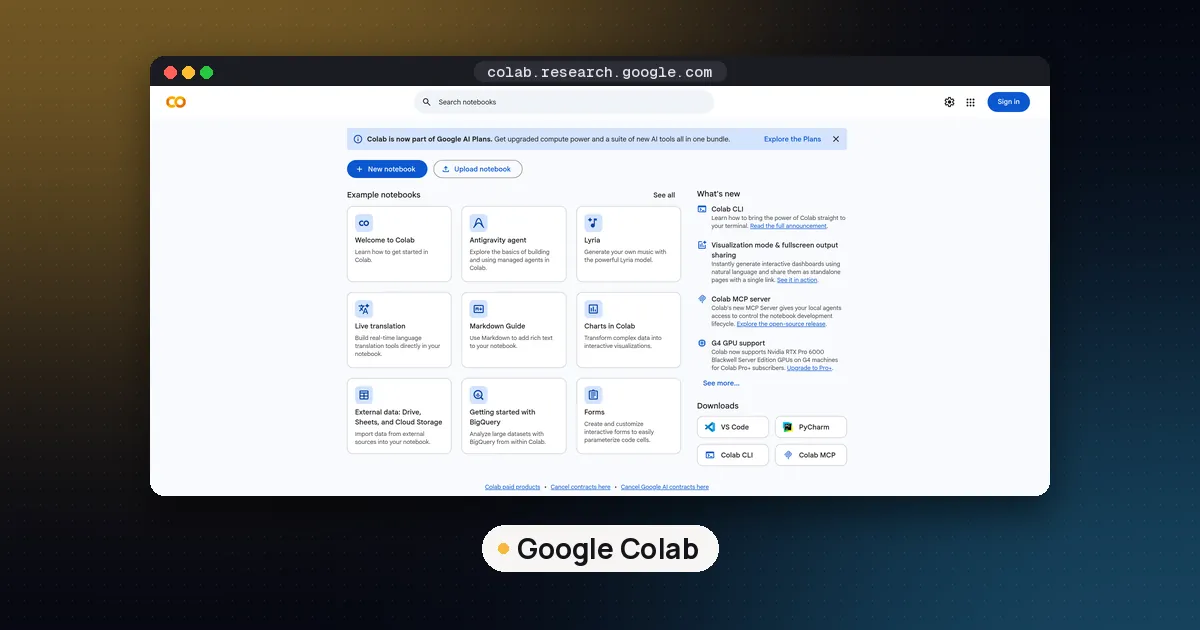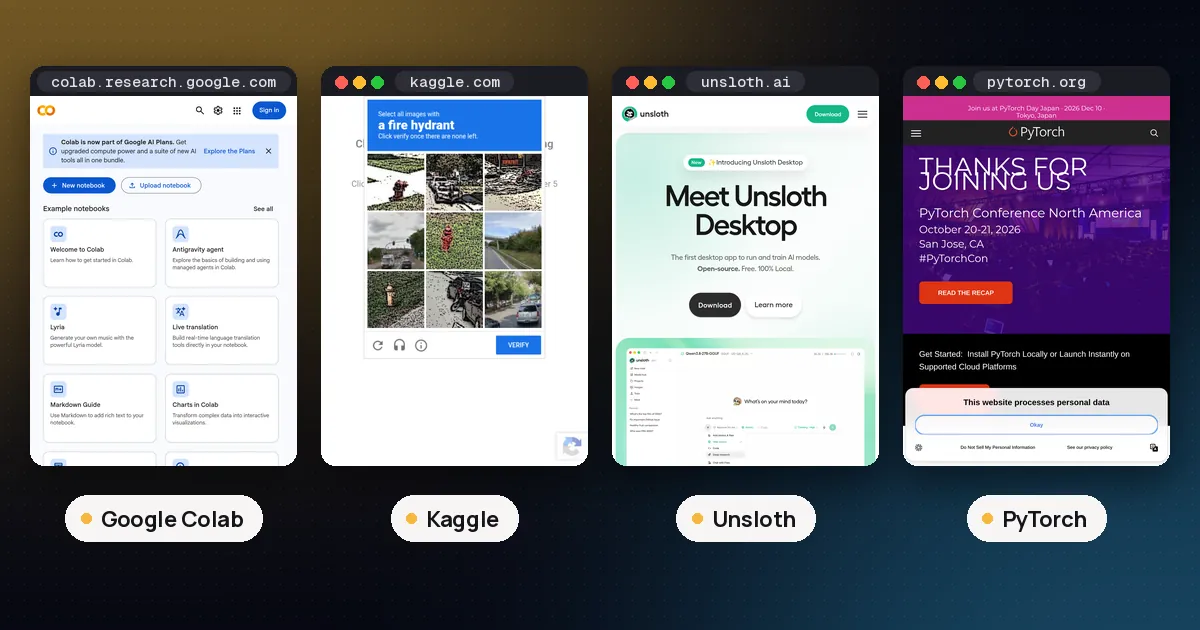
Google Colab vs Kaggle GPU: which is better? For a free GPU you can count on, Kaggle usually wins. It publishes its limits (a weekly GPU quota of about 30 hours, sessions of up to 12 hours, two NVIDIA T4 cards or one P100) and lets a notebook run to the end in the background with Save & Run All. Free Google Colab is quicker to open and ties into Google Drive, but Google does not publish its free limits, the GPU is not guaranteed, and free runs stop soon after you stop interacting. Colab pulls ahead once you pay, because its paid plans offer faster GPUs that Kaggle does not offer.
This guide compares the two on the things that decide a training run: the hardware you get, how long you can use it, what happens when you walk away, where your files live and what paying changes. Every limit below comes from Google's and Kaggle's own documentation, checked on November 13, 2026. We did not run benchmarks on either service for this guide.
The short version
| Item | Free Google Colab | Free Kaggle |
|---|---|---|
| GPU | Not guaranteed; types "vary over time" | One P100 or two T4 cards (T4 x2) |
| GPU time | Not published, limits fluctuate | Weekly quota of 30 hours or sometimes more |
| Longest session | Up to 12 hours, depending on availability | 12 hours (9 hours on TPU) |
| Idle timeout | Not published | 20 minutes in the notebook docs, 60 in the GPU tips page |
| Runs after you close the tab | No on the free tier | Yes, with Save & Run All |
| Saved storage | Your Google Drive | 20 GB in /kaggle/working |
| Paid upgrade | Pro, Pro+, Pay As You Go | No paid GPU tier of its own |
If you only read one row, read the fifth. On free Colab, you babysit the tab. On Kaggle, you can start a full run and close the browser.
What hardware each one gives you
Kaggle: the same cards every time
The Kaggle notebook documentation lists exactly what a session gets. There are two free GPU choices:
- GPU P100: one NVIDIA Tesla P100, 4 CPU cores and 29 GB of RAM.
- GPU T4 x2: two NVIDIA Tesla T4 cards, 4 CPU cores and 29 GB of RAM.
There is also a free TPU v3-8 option for TensorFlow and JAX work, with 96 CPU cores and 330 GB of RAM, capped at 9 hours a session. The catch with all of them is the same line in the docs: free availability is limited, and in busy times you may wait in a queue.
Each T4 has 16 GB of memory according to NVIDIA's T4 specifications. Two cards does not mean one 32 GB card, though. They are separate devices, so to use both your code has to split the model across them or run data parallel training. Libraries such as Transformers can place layers across both cards automatically, but a single layer still has to fit on one 16 GB card.
Colab: usually a T4, never promised
The Colab FAQ says the GPU and TPU types available "vary over time" and that Google does not publish its usage limits, idle timeout periods or maximum VM lifetime because they change. Colab's pricing page is more direct: on the free version "there is very limited access to GPUs."
In practice the free GPU most people get is a single T4. Unsloth's notebook catalog, which builds most of its free training notebooks around Colab, describes the free tier as 15 GB of VRAM (the T4's 16 GB minus overhead). One free Colab T4 therefore gives you about half the GPU memory of a free Kaggle T4 x2 session, if your code can use both Kaggle cards.
Which card suits modern training
The T4 is the card to pick on Kaggle for most LLM work. It has tensor cores, and Unsloth's requirements page lists a minimum CUDA capability of 7.0, naming the T4 as supported. The P100 is an older Pascal card with compute capability 6.0 on NVIDIA's CUDA GPU list, below that line. Unsloth notes that older Pascal GeForce cards work but are slow, so treat the P100 as the fallback when T4 x2 is queued.
How long you can actually use the GPU
Kaggle's published quota
Kaggle's efficient GPU usage page says the GPU quota "resets weekly and is 30 hours or sometimes higher depending on demand and resources." You can see what you have left in the notebook editor settings, on your profile and in the session window. A single session runs for at most 12 hours.
Thirty hours a week is enough for a few LoRA runs on a small model, or one long overnight run plus some testing. It is not enough to leave a GPU idling while you think, which is why the idle timeout matters.
Colab's moving target
Free Colab notebooks "can run for at most 12 hours, depending on availability and your usage patterns," according to the FAQ. Google prioritizes people who are actively programming. There is no weekly number to plan around, and Google's own advice is to close tabs and avoid picking a GPU when you do not need one so you hit limits less often.
What happens when you walk away
This is the biggest practical difference for anyone training a model.
Kaggle separates interactive editing from batch runs. An interactive session ends after a period of inactivity. The notebook docs say 20 minutes of idle time, while the GPU tips page mentions a 60 minute idle timeout, so plan for the shorter figure. But when you choose Save & Run All, Kaggle starts a fresh session, runs the whole notebook from top to bottom and saves the outputs as a new version. That run must finish within 12 hours, and you do not need the tab open. You can also schedule a notebook to rerun daily, weekly or monthly.
Free Colab does not do this. The pricing page says users without a paid subscription "should not rely on execution to continue in the background; execution will be interrupted when user interaction ceases, and the VM will be deleted soon after that." Background execution for up to 24 hours is a Colab Pro+ feature, and only while you have compute units.
So for a three hour fine tuning run that you want to start and forget, free Kaggle is the safer choice.
Storage, data and files
Kaggle saves up to 20 GB of output in /kaggle/working with each version, and you can attach that output as input to another notebook. Anything outside that folder is scratch space that disappears with the session. Kaggle also makes it easy to attach its public datasets, competition data and models from the Input panel.
Colab notebooks live in Google Drive. The VM itself is wiped when it goes idle, so you mount Drive to keep checkpoints. The Colab FAQ warns that mounting Drive gives any code in the notebook access to all your Drive files, and that Drive operations can time out on folders with many items. Copying your dataset in as one archive and unpacking it on the VM avoids most of that.
Both services are hosted by someone else. If your data is private or belongs to a client, read the provider's terms before uploading it, or train on your own machine instead.
Rules and restrictions
Colab's FAQ lists activities that are never allowed, such as crypto mining, torrenting and using several accounts to get around limits. On the free tier it also bans SSH shells, remote desktops, driving the runtime through a web UI instead of the notebook, and running distributed computing workers. A paid plan with a positive compute unit balance lifts that second set.
Kaggle's notebooks are built around sharing and reproducibility. Each version records the Docker image it ran in, packages are updated about every two weeks, and you can pin the original environment so an old notebook still runs. Some competitions require internet to be off at submission, and Kaggle's dependency manager handles offline installs for those.
What paying changes
Kaggle has no paid GPU tier of its own. Its docs point heavy users to Google Cloud notebooks, and an experimental promotion gives linked Colab Pro and Pro+ subscribers 15 and 30 extra Kaggle GPU hours a week. Kaggle says it can end or change that promotion at any time.
Colab sells three upgrades on its pricing page:
- Pay As You Go: buy compute units with no subscription.
- Colab Pro: 100 compute units a month, faster GPUs and the highest memory machines.
- Colab Pro+: $49.99 a month in the US for 600 compute units, priority access to premium GPUs and background execution.
Compute units expire after 90 days and are not refundable. Google does not publish how many units each GPU uses per hour. Some Google AI plans now include Colab compute units too, per the Colab FAQ. Unsloth's catalog notes that Colab's paid 80 GB GPUs are enough to fine tune 120B parameter models, which is far beyond anything free Kaggle can do. Paid Colab is only sold in the countries listed on the pricing page.
Which should you pick?
Pick Kaggle if:
- You want a known weekly budget of GPU hours.
- You want to start a run and close the laptop.
- You can use two 16 GB cards, or just want a T4 when Colab's is unavailable.
- You work with Kaggle datasets or competitions.
Pick free Colab if:
- You want the fastest start from a link, such as a tutorial or an Unsloth notebook.
- Your project already lives in Google Drive.
- Your runs are short and you will be at the keyboard.
Pick paid Colab if your model does not fit on a T4 and you do not want to manage your own server.
Many people use both: they prototype in Colab, then move the final run to Kaggle so it can finish unattended. Unsloth publishes Kaggle versions of many of its notebooks for exactly that reason. For the full training walkthrough, see how to fine tune an LLM in Google Colab. If you would rather drop session limits altogether, our guide to fine tuning an LLM locally covers your own GPU, how much VRAM you need for an LLM helps you size one, and LoRA vs QLoRA explains how 4 bit training squeezes bigger models onto a 16 GB card.
FAQ
Is Kaggle GPU faster than Google Colab?
When both give you a T4, a single card performs the same on either service. Kaggle's advantage is the option of two T4 cards and a predictable quota, not a faster chip. Colab is faster only on paid plans, where you can upgrade to premium GPUs.
How many free GPU hours does Kaggle give?
Kaggle says the weekly GPU quota is 30 hours or sometimes higher depending on demand, and it resets each week. Each session can run for up to 12 hours. Your remaining quota shows in your Kaggle settings and the notebook editor.
Does Google Colab still have a free GPU?
Yes. Colab is free to use and offers GPUs, but Google describes free GPU access as very limited, does not publish the limits and does not guarantee a GPU type. Free sessions last at most 12 hours.
Can I run a Kaggle notebook in the background?
Yes. Save & Run All runs the whole notebook in a new session and saves the results as a version, even if you close the browser. The run has to finish within 12 hours. Interactive sessions, by contrast, stop after a period of inactivity.
What are good Google Colab alternatives with a free GPU?
Kaggle is the main one, with a weekly GPU quota and two T4 cards. If you have an NVIDIA card of your own, local training removes session limits entirely, and you can follow our guide to fine tuning an LLM locally.
Can I use Kaggle's GPU from Colab?
Kaggle has an experimental Kaggle Jupyter Server feature that lets a Colab notebook connect to a running Kaggle session as a local runtime, so the code runs on Kaggle's hardware. The notebook file is copied, not synced, so save your Colab copy to Drive.