How to use TensorFlow in Jupyter Notebook: create a virtual environment on Python 3.10 to 3.13, install tensorflow and ipykernel into it, register that environment as a Jupyter kernel, then pick the kernel in JupyterLab, Jupyter Notebook or VS Code and run import tensorflow as tf in a cell. If you don't want to install anything, open a notebook in Google Colab instead. Almost every "TensorFlow won't import in Jupyter" problem comes from one thing: the notebook is running a different Python than the one you installed TensorFlow into.
This guide covers the notebook side of TensorFlow: kernels, installing packages from a cell, TensorBoard inline, GPU memory in a long running kernel, and the errors people hit most. If you want the TensorFlow basics themselves (tensors, gradients, training a model), read how to use TensorFlow in Python alongside this one.
What you need
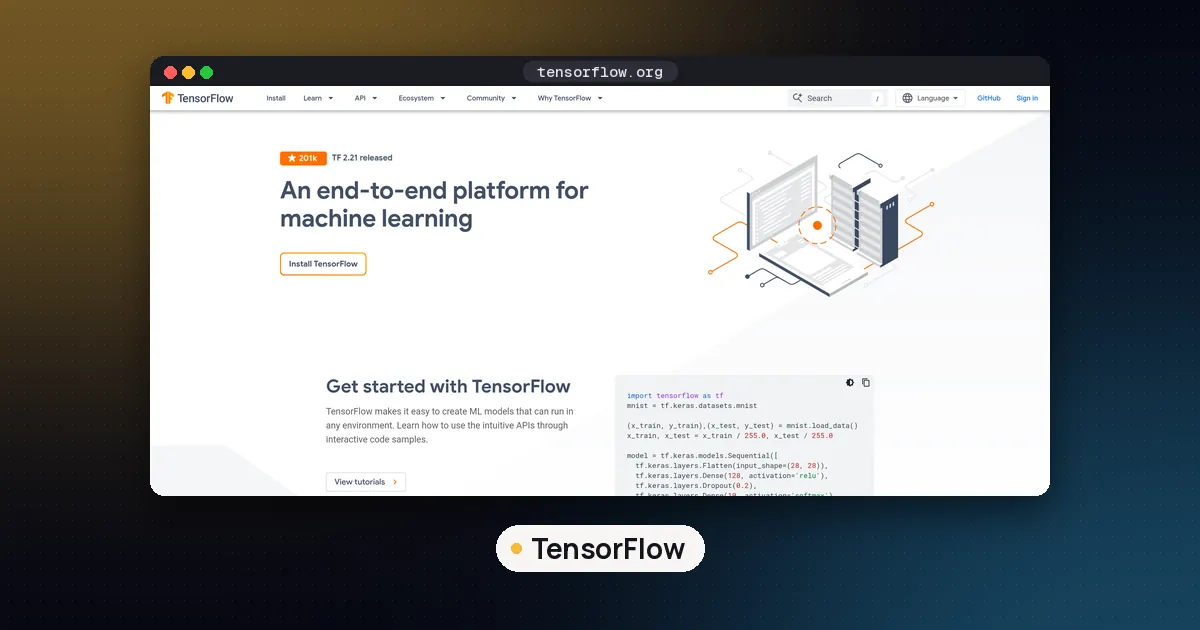
TensorFlow 2.21.0 is the current release on PyPI as of October 28, 2026. It publishes wheels for Python 3.10, 3.11, 3.12 and 3.13 only, so a Jupyter kernel on Python 3.14 will not be able to install it.
| Item | What to use | Why it matters |
|---|---|---|
| Python | 3.10 to 3.13 | TensorFlow 2.21 has no wheels for other versions |
| TensorFlow | 2.21.0 from pip | The official install page says not to install it with conda |
| ipykernel | 7.4.0 (needs Python 3.11 or newer) | Lets Jupyter run code in your environment |
| JupyterLab or Notebook | JupyterLab 4.6.4 or Notebook 7.6.3 | The interface you type into |
| Operating system | Linux, Windows, macOS 12 or newer on Apple silicon | TensorFlow 2.16 was the last release for Intel Macs |
One version detail is easy to miss: ipykernel 7.4.0 requires Python 3.11 or newer, so on Python 3.10 pip will pick an older ipykernel. That still works, but Python 3.12 or 3.13 is the simplest choice today.
Step 1: Create an environment and install TensorFlow
The TensorFlow pip install guide recommends a venv and installing from pip. On Linux or macOS:
python3 -m venv tf
source tf/bin/activate
pip install --upgrade pip
pip install tensorflow ipykernel
On Windows, activate with tf\Scripts\activate instead. For NVIDIA GPU support on Linux or WSL2, install tensorflow[and-cuda] in place of tensorflow. Native Windows lost GPU support after TensorFlow 2.10, which the install page states plainly. Our guide on how to use TensorFlow with GPU covers drivers and the symlink fix if the GPU is not detected.
Check the install from the terminal before you touch Jupyter:
python -c "import tensorflow as tf; print(tf.__version__)"If that prints 2.21.0, TensorFlow itself is fine, and anything that breaks later is a kernel problem.
Step 2: Register the environment as a Jupyter kernel
A kernel is the Python process that actually runs your cells. Jupyter only sees environments that have been registered as kernels. The IPython kernel install docs give the command. With the tf environment still active:
python -m ipykernel install --user --name tf --display-name "Python (TensorFlow)"The --name value is the internal id, and --display-name is what shows up in the notebook menus. Running the command again with the same name overwrites the old kernel, which is handy after you rebuild an environment. To see every kernel Jupyter knows about, run jupyter kernelspec list.
You have two ways to set this up, and both are fine:
- One environment for everything. Install JupyterLab into the same
tfenvironment withpip install jupyterlab, then start it withjupyter lab. The default kernel is already the right Python. - One Jupyter, many environments. Keep JupyterLab installed once, globally or in its own environment, and register each project environment as its own kernel with the command above. This is cleaner if you also work with PyTorch or other stacks.
Step 3: Open a notebook and pick the kernel
Start Jupyter with jupyter lab (or jupyter notebook for the classic interface, per the Jupyter install page). Create a new notebook and choose "Python (TensorFlow)" as the kernel. In an existing notebook, change it from the kernel name shown in the top right corner.
In VS Code, open the .ipynb file and click Select Kernel in the upper right corner of the notebook. The VS Code kernel docs list both registered Jupyter kernels and plain Python environments there, and they note you only need ipykernel in the environment, not Jupyter itself. So for VS Code, Step 2 is optional: pick the tf venv under Python Environments and it works.
Step 4: Confirm TensorFlow runs in the notebook
Put this in the first cell:
import sys
import tensorflow as tf

print(sys.executable)
print(tf.__version__)
print(tf.config.list_physical_devices("GPU"))
sys.executable is the most useful line here. It prints the path of the Python running the kernel, and it should point inside your tf folder. If it points somewhere else, you are on the wrong kernel. The last line prints an empty list on a CPU only machine, which is normal.
Step 5: Train a small model in the notebook
Notebooks shine when you run code in pieces and look at results between steps. Split a small training job across cells like this:
import keras

(x_train, y_train), (x_test, y_test) = keras.datasets.mnist.load_data()
x_train, x_test = x_train / 255.0, x_test / 255.0
model = keras.Sequential([
keras.Input(shape=(28, 28)),
keras.layers.Flatten(),
keras.layers.Dense(128, activation="relu"),
keras.layers.Dense(10, activation="softmax"),
])
model.compile(optimizer="adam",
loss="sparse_categorical_crossentropy",
metrics=["accuracy"])
model.summary()history = model.fit(x_train, y_train, epochs=3,
validation_data=(x_test, y_test))Keep the training call in its own cell. If you want to change the model, you rerun only the cells that matter instead of reloading the data. The history object stays in memory, so a later cell can plot history.history["accuracy"] with matplotlib without training again. Keras ships with TensorFlow 2.21, so there is nothing extra to install for this example.
Installing packages from inside a notebook
If you need another package mid session, use the %pip magic in a cell:
%pip install matplotlibThe IPython docs describe %pip as running pip "within the current kernel," which means it installs into the Python your notebook is actually using. A plain !pip install runs a shell command, and that shell can resolve pip to a different Python. That is a common way to end up with a package that installs fine and still won't import. After installing something that is already imported, restart the kernel so the new version loads.
TensorBoard in Jupyter Notebook
TensorBoard can run inside the notebook instead of in a separate browser tab. The TensorFlow guide to TensorBoard in notebooks uses two magics:
%load_ext tensorboardimport datetime, os
logdir = os.path.join("logs", datetime.datetime.now().strftime("%Y%m%d-%H%M%S"))
tb = keras.callbacks.TensorBoard(logdir, histogram_freq=1)
model.fit(x_train, y_train, epochs=3,
validation_data=(x_test, y_test), callbacks=[tb])%tensorboard --logdir logsThe %tensorboard magic takes the same arguments as the command line tool. You can start it before training and it refreshes as new logs arrive, every 30 seconds according to the guide. TensorBoard installs with TensorFlow. One catch from that page: if Jupyter lives in one environment and your kernel in another, the tensorboard binary has to be on the kernel's PATH, otherwise the magic cannot start it. The single environment setup from Step 2 avoids that.
GPU memory in a long running kernel
A Jupyter kernel stays alive until you restart it, which matters on a GPU. The TensorFlow GPU guide explains that by default TensorFlow maps nearly all memory on every visible GPU to the process. Open two notebooks on the same GPU and the second one may fail to allocate.
The fix is memory growth, and it has to run before TensorFlow touches the GPU, so put it in the very first cell:
import tensorflow as tf

for gpu in tf.config.list_physical_devices("GPU"):
    tf.config.experimental.set_memory_growth(gpu, True)
If you run it after a model has already used the GPU, TensorFlow raises a RuntimeError, because devices cannot be changed once they are initialized. Restart the kernel and run that cell first. Restarting is also the dependable way to hand GPU memory back after a big experiment, since TensorFlow keeps what it has reserved for the life of the process.
Running TensorFlow notebooks without a local install
You have three options if you'd rather skip setup on your own machine:
| Option | What you get | Good for |
|---|---|---|
| Google Colab | Browser notebooks hosted by Google, with optional GPU runtimes | Following the official tutorials, which have "Run in Google Colab" buttons |
| Kaggle notebooks | Hosted notebooks next to Kaggle datasets | Competitions and dataset exploration |
| TensorFlow Docker image | The tensorflow/tensorflow:latest-jupyter image, or latest-gpu-jupyter for NVIDIA GPUs | A local, isolated setup that matches the release |
The TensorFlow Docker page says the -jupyter tag variants include Jupyter and the TensorFlow tutorial notebooks. Start one with docker run -it -p 8888:8888 tensorflow/tensorflow:latest-jupyter and open the URL it prints. In Colab, check the version with tf.__version__ first, and use %pip install tensorflow if you need a specific release.
Fine tune an LLM in a Jupyter notebook
Many people search for TensorFlow notebooks when they really want to fine tune a language model. Most current LLM fine tuning tools are built on PyTorch rather than TensorFlow: PEFT, Unsloth and Axolotl all run on PyTorch. The notebook workflow above still applies. Make a separate environment for those libraries, register it as its own kernel, and keep it apart from your TensorFlow kernel so their dependencies don't clash. Our guide on how to fine tune an LLM locally walks through the training itself, and TensorFlow vs PyTorch vs Keras explains when each framework makes sense.
Common errors and fixes
| Error or symptom | Likely cause | Fix |
|---|---|---|
ModuleNotFoundError: No module named 'tensorflow' | Kernel is a different Python | Check sys.executable, switch kernel or register the venv |
pip says it can't find a version of tensorflow | Python 3.14 or another unsupported version | Rebuild the environment on Python 3.12 or 3.13 |
Kernel dies on import tensorflow | Often an old CPU without AVX, or a broken install | The install page notes the binaries use AVX; run the same import in a terminal to see the real error |
| GPU list is empty | CPU only package, Windows native, or driver issue | Install tensorflow[and-cuda] on Linux or WSL2 and check nvidia-smi |
RuntimeError about visible devices or memory growth | GPU already initialized in this kernel | Restart the kernel and run the GPU setup cell first |
| New package version not picked up | Old version already imported | Restart the kernel after %pip install |
FAQ
How do I add my virtual environment to Jupyter Notebook?
Activate the environment, run pip install ipykernel, then python -m ipykernel install --user --name myenv --display-name "Python (myenv)". It appears in the kernel list the next time you open or refresh Jupyter.
Why does TensorFlow import in the terminal but not in Jupyter?
Because the notebook kernel runs a different Python. Print sys.executable in a cell and compare it with which python (or where python on Windows) in your activated terminal. Register the right environment as a kernel or switch to it.
Should I use pip or conda to install TensorFlow for Jupyter?
Use pip. The official install guide says not to install TensorFlow with conda because conda may not have the latest stable version, and TensorFlow is officially released only to PyPI. You can still create the environment with conda and pip install TensorFlow inside it.
Can I use TensorFlow in Jupyter on a Mac?
Yes, on Apple silicon Macs running macOS 12 or newer, with Python 3.10 to 3.13. TensorFlow has no official GPU support on macOS, so it runs on the CPU. Intel Macs are stuck on TensorFlow 2.16, the last release for them.
Do I need JupyterLab, or is VS Code enough?
VS Code is enough. Its Jupyter extension runs .ipynb files directly, and the environment only needs ipykernel installed. JupyterLab is better if you want a browser interface or plan to run notebooks on a remote server.
Can I use TensorFlow in Google Colab instead?
Yes. Colab runs notebooks in the browser, so there is nothing to install locally, and the official TensorFlow tutorials open there directly. It is the quickest way to try TensorFlow before setting up a local kernel.